
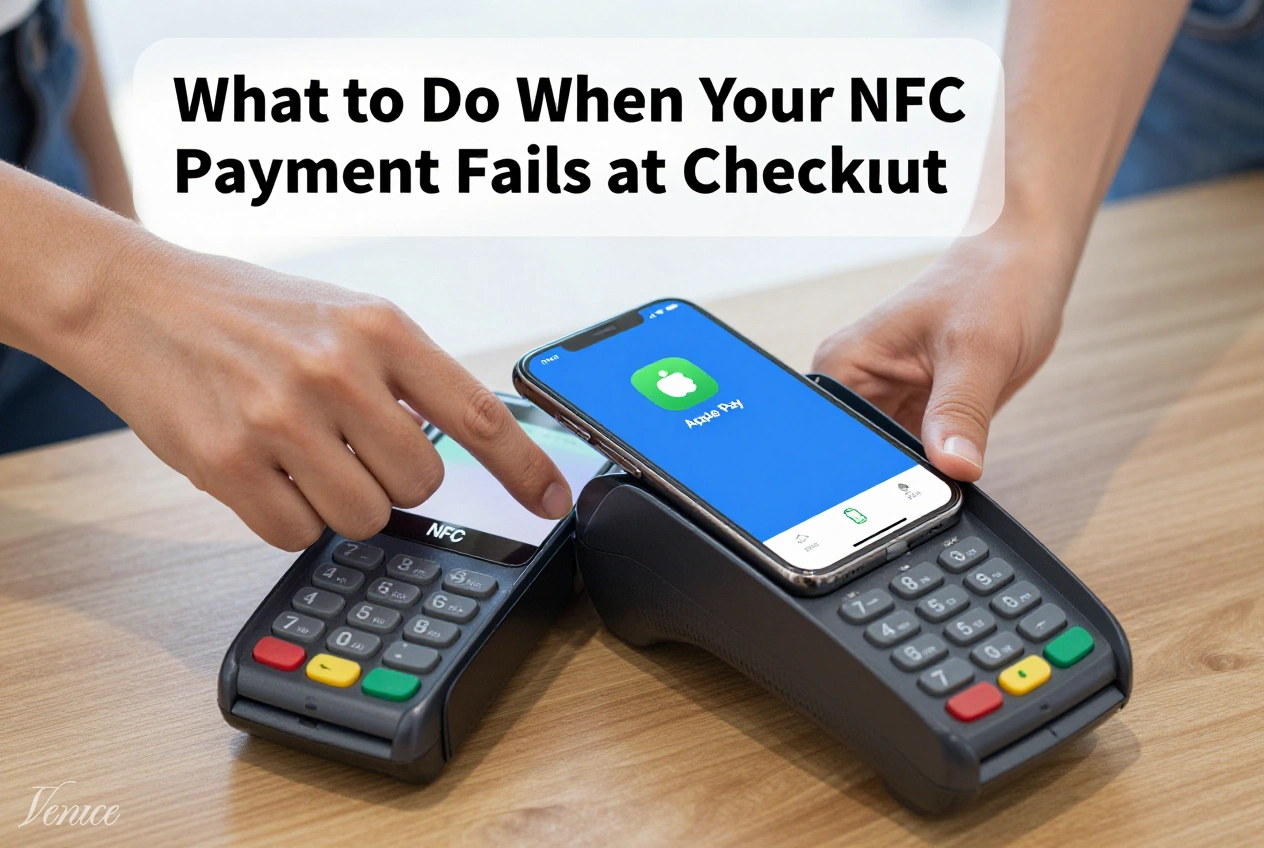
NFC payments offer convenience and speed, but few things are more frustrating than having your contactless payment fail at checkout. Whether you’re trying to pay with Apple Pay, Google Wallet, or another mobile payment service, payment failures can be embarrassing and inconvenient. This comprehensive troubleshooting guide will help you identify and resolve common NFC payment issues quickly and efficiently.
Understanding the potential causes of NFC payment failures and knowing how to address them can save you time and frustration at the checkout counter. We’ll cover everything from simple fixes to more complex solutions, ensuring you’re prepared to handle any contactless payment issues that arise.
Table of Contents
Preparation Requirements
- Alternative payment method (physical card or cash)
- Access to your phone’s settings and payment app
- Knowledge of your card’s status and available funds
- Patience and understanding from store staff
- Basic troubleshooting skills for your device
Step-by-Step Troubleshooting
Step 1: Check NFC and Payment App Status
The first step is to verify that NFC is enabled on your device and that your payment app is functioning correctly. On Android devices, go to Settings > Connected devices > NFC and ensure it’s turned on. For iPhones, NFC is automatically enabled when needed for Apple Pay.
Open your payment app to ensure it’s working properly. If the app is crashing or not responding, force close it and reopen. If the problem persists, restart your device. These simple steps resolve many payment failures by refreshing the system and clearing temporary glitches.
Step 2: Verify Card Status and Available Funds
Sometimes the issue isn’t with your device but with the payment card itself. Check that the card you’re trying to use is active and has sufficient funds or available credit. Some cards may be expired, temporarily frozen, or have reached their credit limit.
If you’re unsure about your card status, quickly check your banking app or call your bank’s customer service. For cards that haven’t been used recently, some banks may require reactivation or additional verification before they can be used for mobile payments.
Step 3: Adjust Phone Position and Distance
The positioning of your phone relative to the payment terminal can significantly affect NFC connectivity. Try holding your phone differently against the terminal – some devices work better when held horizontally rather than vertically. The NFC antenna is typically located on the back of the phone, but its exact position varies by model.
Ensure you’re holding your phone close enough to the terminal (usually within 1-2 inches) but not touching it directly. Some payment terminals are more sensitive than others, so you may need to adjust your distance and position until you find what works for that specific terminal.
Step 4: Remove Phone Case or Accessories
Thick phone cases, especially those containing metal or magnets, can interfere with NFC signals. If you’re using a bulky or protective case, try removing it and attempting the payment again. Similarly, remove any metal accessories or attachments from your phone that might block the NFC signal.
Some wallet-style cases that hold multiple cards can cause interference, especially if they contain other contactless cards. If you use such a case, ensure that only the card you want to use is in the NFC field or temporarily remove the case for payment.
Step 5: Check Payment Terminal Issues
Sometimes the problem isn’t with your phone but with the payment terminal itself. Look for indicators that the terminal is powered on and ready to accept payments. If the terminal screen is frozen, displaying error messages, or not responding, the issue may be with the terminal rather than your device.
If you suspect terminal issues, politely ask the cashier to try restarting the terminal or using a different one. Some stores have multiple payment terminals, and switching to another may resolve the problem. Additionally, ensure that the terminal actually supports contactless payments by looking for the contactless payment symbol.
Step 6: Select Payment Card Manually
If you have multiple cards in your digital wallet, the terminal might be trying to use a different card than the one you intend to use. Open your payment app before attempting the transaction and manually select the card you want to use. This ensures the correct card is presented to the terminal.
For Apple Pay, double-click the side button and select your preferred card. For Google Wallet, open the app and select the card before tapping. This manual selection can resolve issues where the wrong card is being presented or where the app is having trouble determining which card to use.
Step 7: Try Alternative Payment Methods
If multiple attempts fail, it’s time to try alternative payment methods to avoid holding up the line. Use your physical card for the same transaction if possible, as this can help determine whether the issue is with your mobile payment setup or with the card itself.
If you don’t have your physical card, consider using another payment method in your digital wallet or ask if the store accepts other forms of payment. Having a backup payment method ready can save you embarrassment and frustration when mobile payments fail.
Step 8: Address Persistent Issues After Checkout
Once you’ve completed your transaction using an alternative method, address the underlying issue with your mobile payment setup. Start by removing and re-adding the problematic card in your payment app. This can resolve verification issues that may be preventing the card from working properly.
If the problem persists, check for updates to your payment app and device software. Outdated software can cause compatibility issues with newer payment terminals. For persistent problems, contact your device manufacturer’s support or your payment app’s customer service for further assistance.
Prevention Tips
To minimize the likelihood of NFC payment failures in the future, consider these preventive measures:
- Test your mobile payment at a low-risk location before relying on it for important purchases
- Keep your payment apps and device software updated to ensure compatibility with payment terminals
- Use phone cases that don’t interfere with NFC signals or remove them for payments if necessary
- Regularly verify your cards in your payment app to ensure they remain active and properly configured
- Maintain a backup payment method and carry it with you for emergencies
For frequent mobile payment users, consider familiarizing yourself with the specific NFC antenna location on your device. Knowing exactly where to position your phone can significantly improve success rates at different types of payment terminals.
Finally, be patient with both technology and store staff during troubleshooting. NFC payment technology is still evolving, and occasional issues are normal. A calm approach to resolving problems will make the experience less stressful for everyone involved.
Frequently Asked Questions
NFC payment compatibility can vary between different payment terminals due to differences in technology implementation, terminal age, and software versions. Some terminals may have more sensitive NFC readers or be positioned differently. Additionally, certain payment networks may have better compatibility with specific mobile payment services. If your payments consistently work at some locations but not others, the issue is likely with the terminal rather than your device.
Yes, low battery can potentially cause NFC payments to fail, especially on Android devices where NFC functionality may be limited to conserve power. Some phones disable NFC when the battery is critically low. Additionally, low battery can affect the overall performance of your device, potentially causing app crashes or slow response times that interfere with payment processing. Keep your phone adequately charged when planning to use mobile payments, especially for important transactions.
If your payment app keeps crashing, try force closing the app and reopening it. If the problem persists, clear the app’s cache in your device settings. For persistent issues, try uninstalling and reinstalling the app, but make sure you have your card information ready to re-add. Also check for app updates in your device’s app store, as the latest version may have bug fixes. If none of these solutions work, contact the app’s customer support for further assistance.
Additional verification requests during NFC payments are normal security measures designed to protect against fraud. Your bank or payment app may require extra verification for larger transactions, unusual spending patterns, or after a certain number of contactless payments. This verification might involve entering your PIN, using biometric authentication, or opening your banking app. These security measures help ensure that even if someone has physical access to your phone, they cannot make unauthorized payments.
Yes, environmental factors can affect NFC payment reliability. Strong electromagnetic interference from nearby electronics can disrupt NFC signals. Additionally, extreme temperatures can affect both your device’s performance and the payment terminal’s functionality. Metal surfaces or structures between your phone and the terminal can also interfere with signal transmission. If you’re experiencing issues in a particular environment, try moving to a different location or adjusting your position to minimize potential interference.
Occasional NFC payment failures are relatively normal, especially as the technology continues to evolve. Various factors can contribute to these failures, including software bugs, hardware issues, terminal compatibility problems, and user error. While reliability has improved significantly in recent years, no payment method is 100% foolproof. Having a backup payment method and understanding basic troubleshooting steps can help you handle these occasional failures without frustration.
Conclusion
NFC payment failures can be frustrating, but most issues can be resolved with simple troubleshooting steps. By checking your device settings, verifying card status, adjusting phone position, and addressing potential terminal issues, you can overcome most contactless payment problems quickly and efficiently.
Remember that mobile payment technology is still evolving, and occasional failures are normal. The key is to remain calm, have backup payment options available, and address persistent issues after completing your transaction. With the troubleshooting techniques outlined in this guide, you’ll be prepared to handle any NFC payment challenges that arise.
As contactless payment technology continues to improve, reliability will likely increase, reducing the frequency of payment failures. Until then, understanding how to troubleshoot these issues will ensure you can confidently use mobile payments without fear of checkout complications.