
Building your first gaming PC can be an exciting yet daunting experience, especially when working with a limited budget. With careful planning and component selection, you can create a powerful gaming rig that delivers excellent performance without breaking the bank. This comprehensive guide will walk you through every step of building a capable gaming PC for under \$1000, from component selection to final assembly.
The \$1000 price point offers a sweet spot for gamers who want solid 1080p performance with the ability to play most modern games at high settings. We’ll focus on getting the best performance per dollar while ensuring all components work together harmoniously. Whether you’re new to PC building or looking to upgrade from an older system, this guide will help you make informed decisions and avoid common pitfalls.
Table of Contents
Building Requirements
- Budget of approximately \$1000 for all components
- Basic tools (Phillips screwdriver, anti-static wrist strap)
- Clean, well-lit workspace with adequate space
- Patience and attention to detail
- Internet access for drivers and software installation
Building Process
Step 1: Component Selection and Budget Allocation
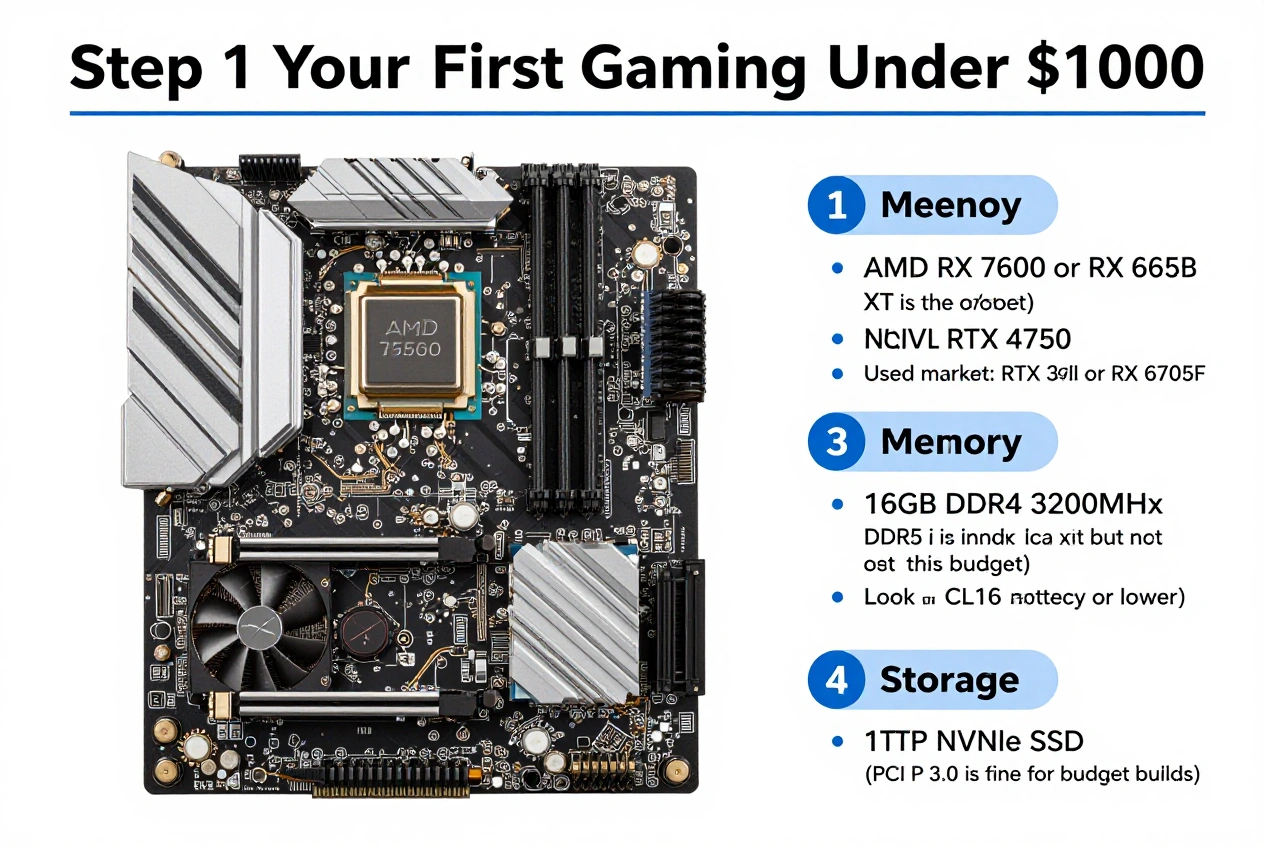
The foundation of a successful budget build begins with strategic component selection. For a \$1000 gaming PC, we’ll allocate approximately 30% to the CPU, 30% to the GPU, 15% to RAM, 10% to storage, 10% to the motherboard, and 5% to the case and power supply. This allocation ensures balanced performance without overspending on any single component.
For the CPU, consider mid-range options like the AMD Ryzen 5 5600 or Intel Core i5-12400F, which offer excellent gaming performance without the premium price tag of high-end processors. The GPU should be your priority investment, with options like the NVIDIA RTX 3060 or AMD RX 6600 XT providing solid 1080p gaming performance. Pair these with 16GB of DDR4 RAM and a 500GB NVMe SSD for a responsive system.
Step 2: Gathering Your Tools and Workspace
Before beginning assembly, prepare your workspace and gather necessary tools. A clean, static-free environment is essential for preventing damage to sensitive components. Use a non-conductive surface like a wooden table, and consider using an anti-static mat for added protection.
Basic tools needed include a Phillips screwdriver (magnetic tip helps but isn’t necessary), cable ties for management, and thermal paste (if not included with your CPU cooler). An anti-static wrist strap is highly recommended to prevent static discharge damage. Keep all component manuals accessible, as they contain valuable information specific to each part.
Step 3: CPU and Motherboard Preparation
Begin by installing the CPU onto the motherboard. Carefully unbox the motherboard and place it on its static bag outside the case. Locate the CPU socket and gently lift the retention arm. Align the CPU with the socket (noting the orientation markers) and place it in position without applying force. The CPU should drop into place easily if properly aligned.
Lower the retention arm to secure the CPU. Next, apply thermal paste if your cooler doesn’t come with pre-applied paste. A pea-sized amount in the center of the CPU is sufficient. Install the CPU cooler according to the manufacturer’s instructions, connecting the fan cable to the CPU fan header on the motherboard. Finally, install the RAM sticks in the correct slots (typically A2 and B2 for dual-channel) by aligning the notches and pressing firmly until the clips click into place.
Step 4: Case Preparation and Motherboard Installation
Prepare your case by removing the side panels and organizing the included screws. Install the motherboard I/O shield by pressing it into the opening from inside the case. Install the motherboard standoffs in the case, ensuring they match the holes in your motherboard.
Carefully lower the motherboard into the case, aligning it with the standoffs and I/O shield. Secure it using the appropriate screws, but don’t overtighten them. Install the power supply unit (PSU) in its designated location, typically at the bottom rear of the case, with the fan facing downward if it has a bottom fan. Connect the main 24-pin motherboard power cable and the 8-pin CPU power cable (you may need to route these behind the motherboard tray for a cleaner build).
Step 5: Storage and Graphics Card Installation
Install your storage drives in the appropriate bays. For an NVMe SSD, locate the M.2 slot on the motherboard and secure the drive with the small screw. For SATA SSDs or HDDs, mount them in the drive bays using the included brackets and connect SATA data cables to the motherboard and SATA power cables from the PSU.
Install the graphics card by removing the corresponding expansion slot covers on the case rear. Align the GPU with the PCIe x16 slot on the motherboard and press down firmly until it clicks into place. Secure the card to the case using screws. Connect the necessary power cables from the PSU to the graphics card (this may require one or two 6-pin or 8-pin connectors, depending on your GPU).
Step 6: Cable Management and Front Panel Connections
Proper cable management not only improves aesthetics but also airflow. Route cables behind the motherboard tray where possible, using the case’s cable routing channels. Use cable ties to bundle cables together and keep them neat. Connect the front panel USB, audio, and power switch connectors to the motherboard according to the manual’s diagrams (these are typically small and fiddly, so take your time).
Connect case fans to the motherboard fan headers or directly to the PSU if necessary. Ensure all power connections are secure, including the main motherboard power, CPU power, GPU power, and storage drives. Double-check that no cables are interfering with fan blades or component installation.
Step 7: Initial Boot and BIOS Configuration
Before closing up the case, perform an initial boot test. Connect your monitor to the graphics card (not the motherboard), plug in the keyboard and mouse, and connect the power cord. Press the power button on the case to start the system.
If the system powers on, enter the BIOS by pressing the designated key during startup (typically DEL, F2, or F10). In the BIOS, verify that all components are recognized, set the boot order to prioritize your storage drive, and enable XMP (Extreme Memory Profile) if using compatible RAM for optimal performance. Check that CPU and GPU temperatures are reasonable before proceeding.
Step 8: Operating System Installation and Driver Setup
With the BIOS configured, install your operating system. Create a bootable USB drive with Windows or Linux using another computer. Boot from the USB drive and follow the installation prompts, selecting your storage drive as the installation location.
After the OS installation, install all necessary drivers. Start with the motherboard chipset drivers from the manufacturer’s website, followed by the latest graphics drivers from NVIDIA or AMD. Install any additional drivers for onboard audio, LAN, and other components. Finally, update Windows and install your preferred applications and games.
Step 9: Final Assembly and Performance Testing
With everything working properly, perform final cable management and close up the case. Route any remaining cables neatly and secure them with ties. Install any additional case fans if desired, ensuring optimal airflow through the case.
Test your system with benchmarking software like 3DMark or built-in Windows tools to verify performance. Monitor temperatures during gaming sessions to ensure adequate cooling. If temperatures are high, consider adjusting fan curves in the BIOS or software, or improving cable management for better airflow. Your budget gaming PC is now ready for gaming!
Budget Optimization Tips
To maximize performance within your \$1000 budget, consider these optimization strategies:
- Look for component bundles and combo deals that offer savings when purchased together
- Consider previous generation components that often provide excellent value for money
- Monitor prices for a few weeks before purchasing to catch sales and discounts
- Allocate more budget to the GPU and CPU, as these have the biggest impact on gaming performance
- Consider a mid-range motherboard with essential features rather than premium models
For additional savings, consider reusing components from a previous build if available, such as the power supply, case, or storage. You can also start with a smaller storage capacity and upgrade later as prices drop. Remember that component prices fluctuate regularly, so flexibility in your component choices can lead to significant savings without sacrificing performance.
Finally, don’t forget to factor in the cost of an operating system if you don’t have a license already. Windows can add \$100-120 to your build cost, so consider Linux alternatives if you’re comfortable with them or look for Windows license deals from third-party sellers to reduce this expense.
Frequently Asked Questions
Absolutely! While component prices have fluctuated in recent years, \$1000 remains a viable budget for building a capable gaming PC that can handle most modern games at 1080p resolution with good frame rates. The key is strategic component selection and prioritizing performance-critical parts like the GPU and CPU while being more budget-conscious with other components like the case and storage capacity.
For a budget gaming build, the graphics card (GPU) should typically be your biggest investment after the CPU. The GPU has the most significant impact on gaming performance, so allocating approximately 30% of your budget to this component is wise. A good CPU is also important, but mid-range options often provide excellent gaming performance without the premium price of high-end processors. Balance is key – avoid overspending on one component at the expense of others that create bottlenecks.
Both AMD and Intel offer excellent options for budget gaming builds. AMD’s Ryzen 5 series typically provides better value with more cores and threads, making them versatile for both gaming and productivity. Intel’s Core i5 series often delivers slightly better single-threaded performance, which can benefit some games. At the budget end, the choice often comes down to current pricing and motherboard costs. Check recent benchmarks and prices to determine which offers better value at the time of your build.
For a budget gaming PC in 2026, 16GB of DDR4 RAM is the sweet spot. This provides sufficient memory for most modern games and allows for smooth multitasking. While 8GB can work for budget-focused builds, it may become limiting with newer games. 32GB is overkill for most gaming scenarios at this budget level. Focus on getting a decent speed (3200MHz-3600MHz) with good timings rather than capacity, as this will provide better performance for gaming.
Building your own PC offers several advantages over pre-built systems at the same price point. You typically get better components for your money, have full control over part selection, and gain valuable knowledge about your system. Additionally, you avoid the bloatware often included with pre-built systems. While pre-built systems offer convenience and warranty support, building allows for future upgrades and troubleshooting knowledge. For enthusiasts willing to invest the time, building provides better value and a more personalized experience.
If your build doesn’t start, don’t panic. First, check that all power connections are secure, including the main 24-pin motherboard connector and the 8-pin CPU power connector. Verify that the RAM is properly seated and try booting with a single stick of RAM. Check that the GPU is properly installed and connected. If still not working, try breadboarding (building outside the case) to rule out short circuits. Most issues are related to loose connections or improper seating, so methodical troubleshooting usually resolves the problem.
Conclusion
Building your first gaming PC under \$1000 is an achievable and rewarding project that can provide excellent gaming performance without breaking the bank. By carefully selecting components, following proper assembly procedures, and optimizing your budget, you can create a system that rivals pre-built gaming PCs at similar price points.
Remember that component prices and availability fluctuate, so flexibility in your parts list can help you stay within budget while maintaining performance. The knowledge gained from building your own PC is invaluable, allowing you to troubleshoot issues and perform future upgrades with confidence.
As you enjoy your new gaming PC, consider future upgrade paths that can extend its lifespan. A good budget build provides a solid foundation that can be incrementally improved over time, ensuring your system remains capable of handling new games and technologies for years to come.