
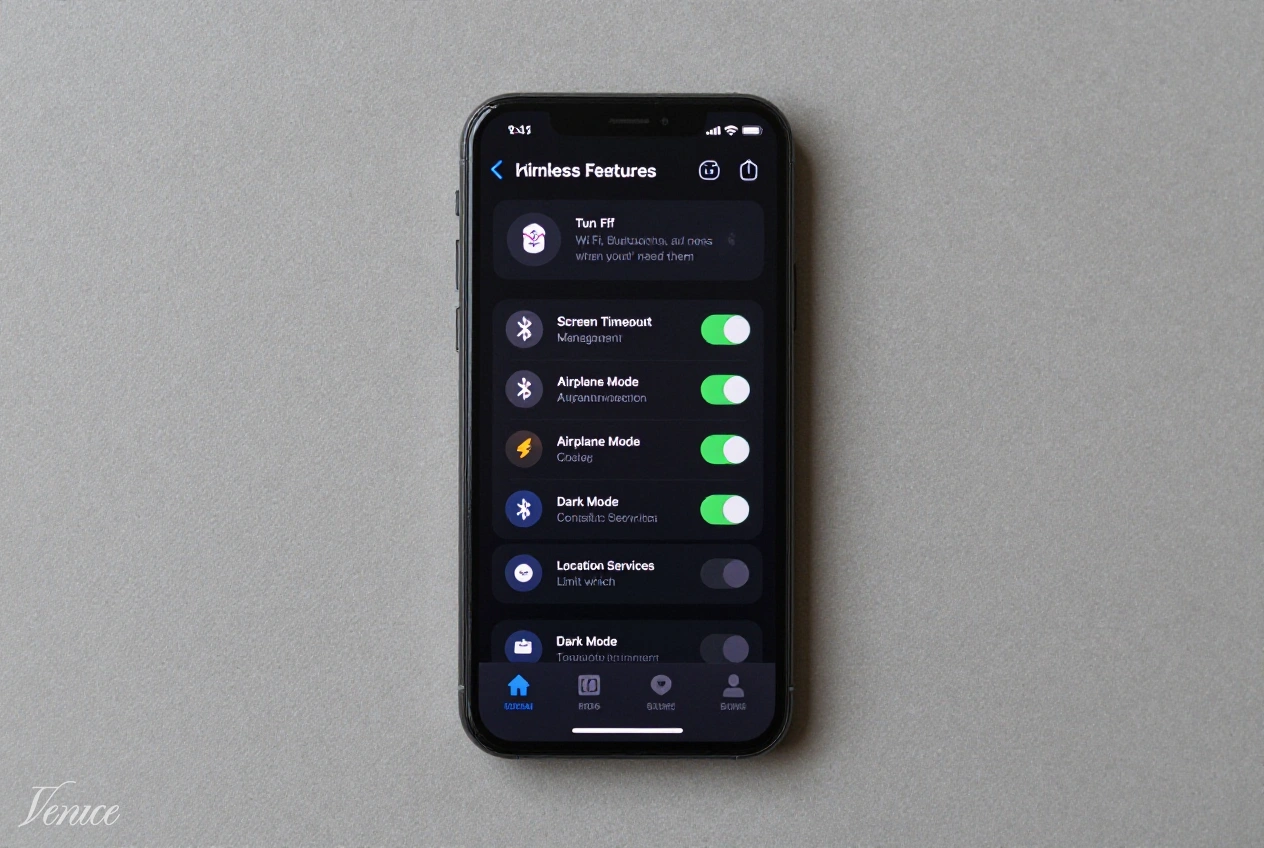
Smartphone battery life remains a top concern for users as our devices become increasingly powerful and feature-rich. While manufacturers continue to improve battery technology, the demand for longer usage times often outpaces these advancements. Fortunately, with a few strategic adjustments to your phone’s settings, you can significantly extend your battery life without sacrificing essential functionality.
This comprehensive guide will walk you through the most effective settings and practices to optimize your smartphone’s battery performance. We’ll cover both iOS and Android devices, providing specific recommendations for each platform. By implementing these changes, you can potentially add hours to your daily battery life, reducing the need for frequent charging and ensuring your device lasts through even the most demanding days.
Table of Contents
Battery Optimization Requirements
- Access to your phone’s settings menu
- Knowledge of your typical usage patterns
- Willingness to adjust some settings for better battery life
- Understanding of which apps consume the most battery
- Patience to monitor results and fine-tune settings
Optimization Process
Step 1: Optimize Display Settings
The display is typically the biggest battery drain on any smartphone. Start by adjusting your screen brightness to the lowest comfortable level rather than using auto-brightness, which can sometimes be overly aggressive. Consider setting a manual brightness level that works for most environments and only adjusting it when necessary.
Enable dark mode if your phone has an OLED or AMOLED screen, as these displays can turn off pixels to show true black, significantly reducing power consumption. For LCD screens, dark mode provides minimal battery benefits but can still reduce eye strain in low-light conditions. Additionally, reduce your screen timeout duration to the shortest practical setting (30 seconds or less) to ensure the display turns off quickly when not in use.
Step 2: Manage Connectivity Features
Connectivity features can significantly impact battery life when left enabled unnecessarily. Turn off Wi-Fi, Bluetooth, and cellular data when you’re not actively using them, especially in areas with poor signal strength where your phone works harder to maintain connections. Consider using Airplane Mode in areas with no service to prevent your phone from constantly searching for signals.
For iPhone users, disable Wi-Fi networking in Location Services (Settings > Privacy > Location Services > System Services > Wi-Fi Networking) as this feature continuously scans for Wi-Fi networks even when not connected. Android users can disable Wi-Fi scanning in Location settings. Additionally, turn off personal hotspot when not in use, as it consumes substantial power even when no devices are connected.
Step 3: Optimize App Notifications and Background Activity
App notifications constantly wake your device and consume power. Review your notification settings and disable non-essential notifications. On iOS, go to Settings > Notifications and turn off notifications for apps that don’t need immediate attention. On Android, go to Settings > Apps & notifications > Notifications to customize which apps can send alerts.
Restrict background app refresh for apps that don’t need to update content constantly. On iOS, go to Settings > General > Background App Refresh and select Wi-Fi only or disable it entirely for power-hungry apps. Android users can restrict background activity in Settings > Apps > [App name] > Battery > Background usage. Consider disabling background activity for social media apps, news apps, and other content-heavy applications.
Step 3: Optimize App Notifications and Background Activity
App notifications constantly wake your device and consume power. Review your notification settings and disable non-essential notifications. On iOS, go to Settings > Notifications and turn off notifications for apps that don’t need immediate attention. On Android, go to Settings > Apps & notifications > Notifications to customize which apps can send alerts.
Restrict background app refresh for apps that don’t need to update content constantly. On iOS, go to Settings > General > Background App Refresh and select Wi-Fi only or disable it entirely for power-hungry apps. Android users can restrict background activity in Settings > Apps > [App name] > Battery > Background usage. Consider disabling background activity for social media apps, news apps, and other content-heavy applications.
Step 4: Adjust Location Services Settings
Location services are another significant battery drain. Review which apps have access to your location and set them to use location only while in use rather than always. On iOS, go to Settings > Privacy > Location Services and adjust each app’s location access. On Android, go to Settings > Location > App permission to customize location access for each application.
Consider disabling location services entirely when not needed, or use battery-saving location mode on Android devices. For iPhone users, disable significant locations and location-based alerts in System Services under Location Settings. These adjustments can significantly reduce power consumption while maintaining location functionality for essential apps like navigation when needed.
Step 5: Optimize Sound and Haptics
Sound and haptic feedback can consume more power than you might expect. Lower your ringer and alert volumes to the minimum necessary levels. Consider disabling unnecessary haptic feedback, especially for keyboard taps and system interactions. On iOS, go to Settings > Sounds & Haptics to adjust these settings. Android users can find similar options in Settings > Sound & vibration.
For iPhone users, disable keyboard clicks and haptic feedback if you don’t find them essential. Android users can disable touch sounds, vibration when ringing, and other haptic feedback in the sound settings. These small adjustments can add up to noticeable battery savings over time, especially for frequent phone users.
Step 6: Manage Battery-Intensive Features
Some smartphone features consume disproportionate amounts of battery. Consider disabling animated wallpapers and live widgets that constantly update. On iOS, reduce motion by going to Settings > Accessibility > Motion and enabling Reduce Motion. Android users can disable live wallpapers and limit home screen widgets to those that update infrequently.
For iPhone users, disable Raise to Wake if you find it triggering too frequently throughout the day. This feature can be found in Settings > Display & Brightness. Android users can disable ambient display or always-on display features if available. Consider disabling Hey Siri or OK Google detection if you don’t use voice assistants frequently, as these features continuously listen for activation commands.
Step 7: Optimize Charging Habits
Proper charging habits can extend your battery’s lifespan and daily performance. Avoid letting your battery drain completely to 0% regularly, as this puts additional strain on the battery. Similarly, avoid charging to 100% when possible, especially if you’ll be leaving the phone plugged in for extended periods.
Most modern smartphones include optimized charging features that learn your usage patterns and delay charging to 100% until you need to use the phone. On iOS, enable Optimized Battery Charging in Settings > Battery > Battery Health. Android users can find adaptive charging options in Settings > Battery. Consider using slower charging methods when time permits, as fast charging generates more heat and can accelerate battery degradation over time.
Step 8: Monitor Battery Usage and Identify Problem Apps
Regularly check your battery usage statistics to identify apps or services consuming excessive power. On iOS, go to Settings > Battery to see detailed usage information. Android users can find similar information in Settings > Battery > Battery usage. Pay attention to apps that appear in the background activity or consume disproportionate amounts of power.
If you identify problematic apps, consider alternatives or adjust their settings to reduce power consumption. Some apps may have internal settings to reduce background activity or refresh frequency. For apps that you rarely use but consume significant battery, consider uninstalling them entirely. This ongoing monitoring process helps you maintain optimal battery performance as your usage patterns and app behaviors change over time.
Advanced Battery Saving Techniques
For users who need maximum battery life, consider these advanced techniques:
- Use low power mode strategically during extended periods away from charging
- Disable visual effects like transparency and animations on iOS devices
- Use Lite versions of apps when available, as they typically consume less power
- Clear app cache regularly to reduce unnecessary processing and storage usage
- Consider using a battery monitoring app to identify unusual power consumption patterns
For Android users, developer options offer additional battery-saving settings. Enable developer options by tapping the build number seven times in Settings > About phone. In developer options, consider disabling window animation scale, transition animation scale, and animator duration scale to reduce processing overhead. You can also restrict background processes and limit the number of background apps to conserve power.
Finally, keep your operating system and apps updated, as updates often include battery optimization improvements. However, be cautious with major OS updates immediately after release, as early versions sometimes contain battery-related bugs that are addressed in subsequent updates. Reading user feedback before updating can help you avoid potential battery issues.
Frequently Asked Questions
Contrary to popular belief, frequently closing apps can actually consume more battery than leaving them open. Modern operating systems are designed to manage memory efficiently, keeping apps in a suspended state that consumes minimal power. When you force-close an app, it must reload completely when reopened, consuming more CPU cycles and battery than simply resuming from suspension. Only close apps that are misbehaving or consuming excessive background resources, as indicated in your battery usage statistics.
Modern smartphones include optimized charging features that make overnight charging relatively safe for battery health. These features learn your usage patterns and delay charging to 100% until shortly before you typically wake up. However, if you’re concerned about battery longevity, charging in shorter bursts and avoiding keeping your phone at 100% for extended periods can be beneficial. The most important factor is avoiding extreme temperatures during charging, as heat is more damaging to batteries than charging patterns.
Battery-saving apps have limited effectiveness on modern smartphones. Most built-in battery optimization features already provide the benefits that third-party apps claim to offer. Some battery-saving apps may actually consume more resources through their own background processes. However, certain apps can be useful for monitoring battery usage and identifying problematic applications. For most users, the built-in battery settings and optimization features provide sufficient control without the potential drawbacks of third-party solutions.
The amount of battery life you can save depends on your current settings and usage patterns. Users with heavily optimized settings may see minimal improvements, while those with many power-hungry features enabled could see 20-30% or more improvement in battery life. The biggest gains typically come from display optimization, managing background activity, and controlling connectivity features. Implementing all the recommendations in this guide can potentially add several hours to your daily battery life, though results will vary based on your specific device and usage patterns.
Using your phone while charging is generally safe, though it may slow down the charging process and generate additional heat. The heat generated by simultaneous charging and use can accelerate battery degradation over time, but the effect is minimal for occasional use. If you need to use your phone while charging frequently, consider using a slower charger to reduce heat generation. The most important factor is avoiding high temperatures, so avoid using your phone while charging in direct sunlight or hot environments.
Consider replacing your battery when you notice significant degradation in battery life, typically when your battery health drops below 80% on iOS devices. Other signs include unexpected shutdowns, especially at higher charge levels, or significantly reduced usage time between charges. Most smartphone batteries are designed to retain approximately 80% of their original capacity after 500 full charge cycles. If your phone is more than 2-3 years old and you’re experiencing these issues, a battery replacement can often restore much of the original battery life without the cost of a new device.
Conclusion
Extending your smartphone battery life doesn’t require drastic measures or sacrificing essential functionality. By implementing the settings and practices outlined in this guide, you can significantly improve your device’s battery performance while maintaining the features you rely on daily. The key is finding the right balance between functionality and battery conservation based on your specific needs and usage patterns.
Remember that battery optimization is an ongoing process rather than a one-time fix. As your usage patterns evolve and apps update their behaviors, periodically reviewing your battery settings and usage statistics will help you maintain optimal performance. The small adjustments you make today can add up to significant improvements in daily battery life over time.
By taking control of your device’s power consumption through these simple settings, you can reduce the anxiety of running out of battery during important moments and enjoy more uninterrupted use of your smartphone throughout the day. With these optimizations in place, you’ll be better prepared to handle even the most demanding days without constantly searching for a charger.