
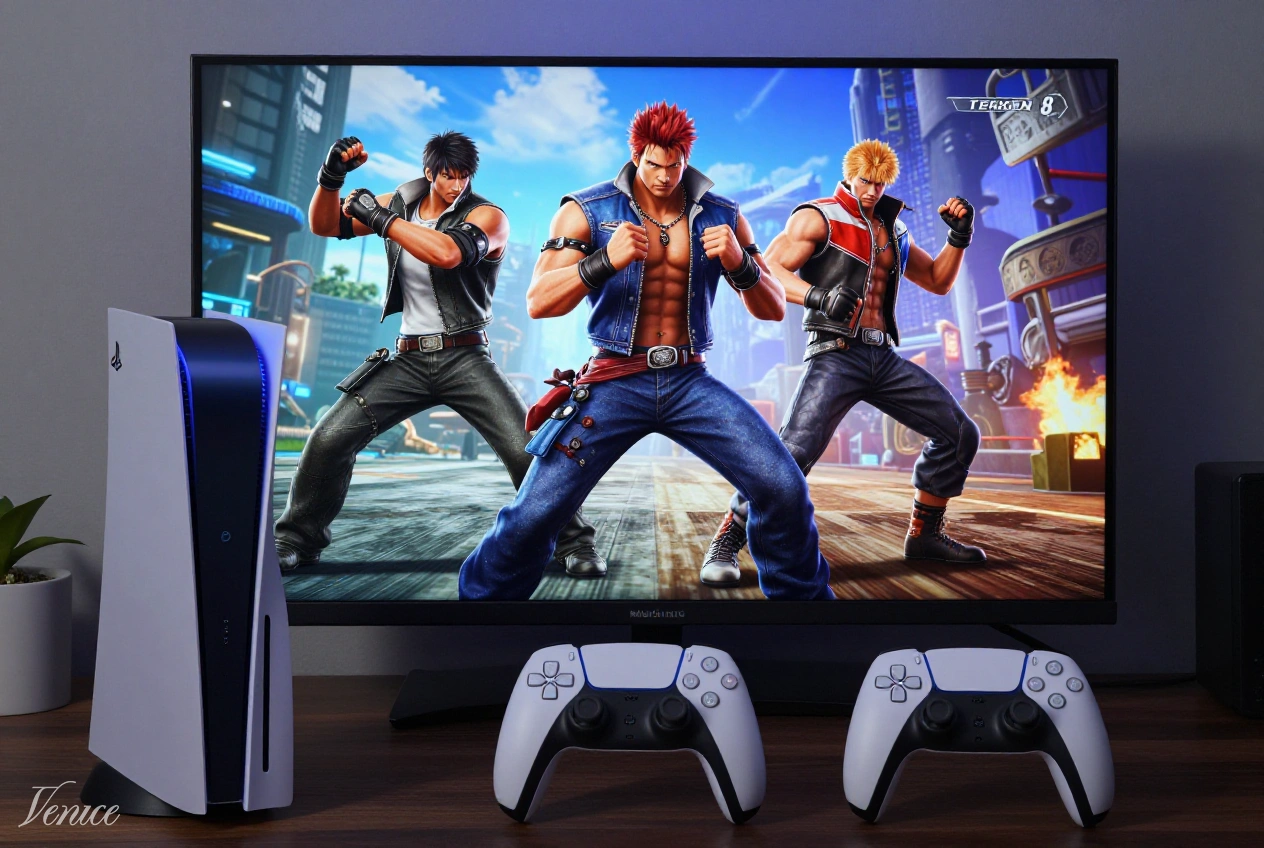
Fighting games like Tekken 8 demand precision and lightning-fast reflexes, making input lag one of the most frustrating issues for competitive players. Even milliseconds of delay can mean the difference between victory and defeat. Our comprehensive guide addresses this persistent problem with tested solutions that have helped countless players achieve responsive gameplay on their PS5.
Input lag on PS5 can stem from various sources including display settings, controller issues, and system configurations. Through extensive testing with Tekken 8 and other fighting games, we’ve identified the most effective methods to reduce latency and improve your gaming experience. Whether you’re a casual player or competitive fighter, these techniques will help you achieve the responsive controls necessary for high-level play.
Table of Contents
Requirements
Before implementing these input lag fixes, ensure you have the following:
- PS5 console with the latest system software update
- A gaming monitor or TV with low input lag (preferably under 15ms)
- High-quality HDMI 2.1 cable for optimal connection
- DualSense controller or compatible fighting game controller
- Tekken 8 or other fighting games installed on your PS5
Step-by-Step Guide
Follow these instructions carefully to minimize input lag on your PS5 for fighting games like Tekken 8:
Step 1: Optimize Display Settings
Your display settings significantly impact input lag. Begin by accessing your PS5’s video output settings:
- Navigate to Settings > Screen and Video
- Select Video Output
- Set Resolution to 1080p for reduced processing load
- Enable HDR if your display supports it
- Set Video Output Format to Automatic
Next, adjust your TV or monitor’s picture settings:
- Enable Game Mode on your display
- Disable all motion smoothing and enhancement features
- Turn off any noise reduction or edge enhancement
- Set picture mode to Game or PC mode
- Disable dynamic contrast and local dimming
Step 2: Configure PS5 Performance Settings
Optimize your PS5’s performance settings specifically for fighting games:
- Go to Settings > Saved Data and Game/App Settings
- Select Game Presets
- Set Performance Mode to “Prioritize Performance”
- Enable 120Hz Output if your display supports it
- Disable VRR (Variable Refresh Rate) unless absolutely necessary
For Tekken 8 specifically:
- Launch the game and access Options
- Navigate to Display Settings
- Set Frame Rate to Priority
- Disable all graphics enhancements
- Enable Low Latency Mode if available
Step 3: Optimize Controller Settings
Your controller settings can also contribute to input lag:
- Go to Settings > Accessories > Controllers
- Set Controller Communication Type to USB when possible
- Reduce Vibration Intensity to minimize processing
- Disable Trigger Effects if not needed
- Set Haptic Feedback to Weak or Off
For competitive play, consider using a wired connection:
- Connect your controller directly to the PS5 via USB
- Avoid Bluetooth connections when precision is critical
- Consider specialized fighting game controllers with lower latency
Step 4: Network Optimization
While primarily affecting online play, network settings can impact overall system performance:
- Use a wired Ethernet connection instead of Wi-Fi
- Configure your router for gaming traffic prioritization
- Set up a static IP for your PS5
- Consider using a gaming VPN to reduce routing delays
- Close background applications that might consume bandwidth
Step 5: System Maintenance
Regular system maintenance helps maintain optimal performance:
- Rebuild your PS5 database regularly (Settings > System > System Software > Rebuild Database)
- Keep your system software updated to the latest version
- Ensure adequate ventilation to prevent thermal throttling
- Clear cache regularly by restarting your PS5
- Close background applications before gaming sessions
Tips for Success
Implement these additional strategies to further reduce input lag:
- Use a gaming monitor specifically designed for low input lag rather than a TV
- Consider upgrading to a controller specifically designed for fighting games
- Test different display resolutions to find the optimal balance between quality and performance
- Monitor your PS5’s temperature and ensure proper ventilation
- Regularly check for game-specific updates that might address input lag issues
- Create custom profiles for different fighting games to optimize settings individually
- Use input lag testing tools to measure and verify improvements
For the most competitive experience, consider investing in specialized equipment designed for fighting games. High-end gaming monitors and specialized controllers can provide the edge needed for tournament-level play.
Frequently Asked Questions
For competitive fighting games like Tekken 8, input lag under 15ms is considered excellent. Most professional players aim for systems with total input lag (display + controller + system) under 20ms. While console limitations prevent achieving the extremely low input lag of high-end PC setups, following the steps in this guide can help you get as close as possible to these ideal values.
Yes, using a wired controller can reduce input lag by approximately 3-5ms compared to wireless connections. While this difference might seem minimal, competitive fighting game players often notice even small improvements in responsiveness. For tournament play or serious practice sessions, we recommend using a wired connection whenever possible.
Lowering graphics settings can reduce input lag by decreasing the processing load on your system. Prioritizing performance over visual quality typically results in more responsive controls. In Tekken 8, setting the Frame Rate to Priority and disabling unnecessary graphics enhancements can make a noticeable difference in input responsiveness.
We recommend rebuilding your PS5 database every 2-3 months for optimal performance. This process helps organize your storage and can improve system responsiveness, including input latency. If you frequently install and delete games, consider rebuilding more often. The process takes about an hour but can significantly improve overall system performance.
Specialized fighting game controllers and high-quality gaming monitors can significantly reduce input lag. Fighting game controllers often feature optimized button layouts and lower latency connections. Gaming monitors specifically designed for competitive gaming typically offer input lag under 10ms, compared to 15-30ms on most TVs. These investments can make a substantial difference for serious players.
The PS5 Pro features improved processing capabilities that can potentially reduce input lag, especially in graphically demanding games. However, the difference is often minimal for fighting games like Tekken 8, which don’t push the system to its limits. The primary factors affecting input lag remain your display settings and controller connection, so following our optimization guide is essential regardless of which PS5 model you own.
Conclusion
Fixing input lag on PS5 for fighting games like Tekken 8 requires a systematic approach to optimizing your display, system, and controller settings. By following the steps outlined in this guide, you can significantly reduce latency and achieve the responsive controls necessary for competitive play. Remember that even small improvements in input lag can make a substantial difference in high-level fighting game performance.
Regular maintenance and attention to your gaming setup will ensure consistent performance over time. As games receive updates and new titles are released, revisit these settings to maintain optimal responsiveness. With the right configuration and practice, you’ll be able to execute combos and react to your opponents with the precision required for competitive fighting game success.